
Dental Cybersecurity - Have a Plan
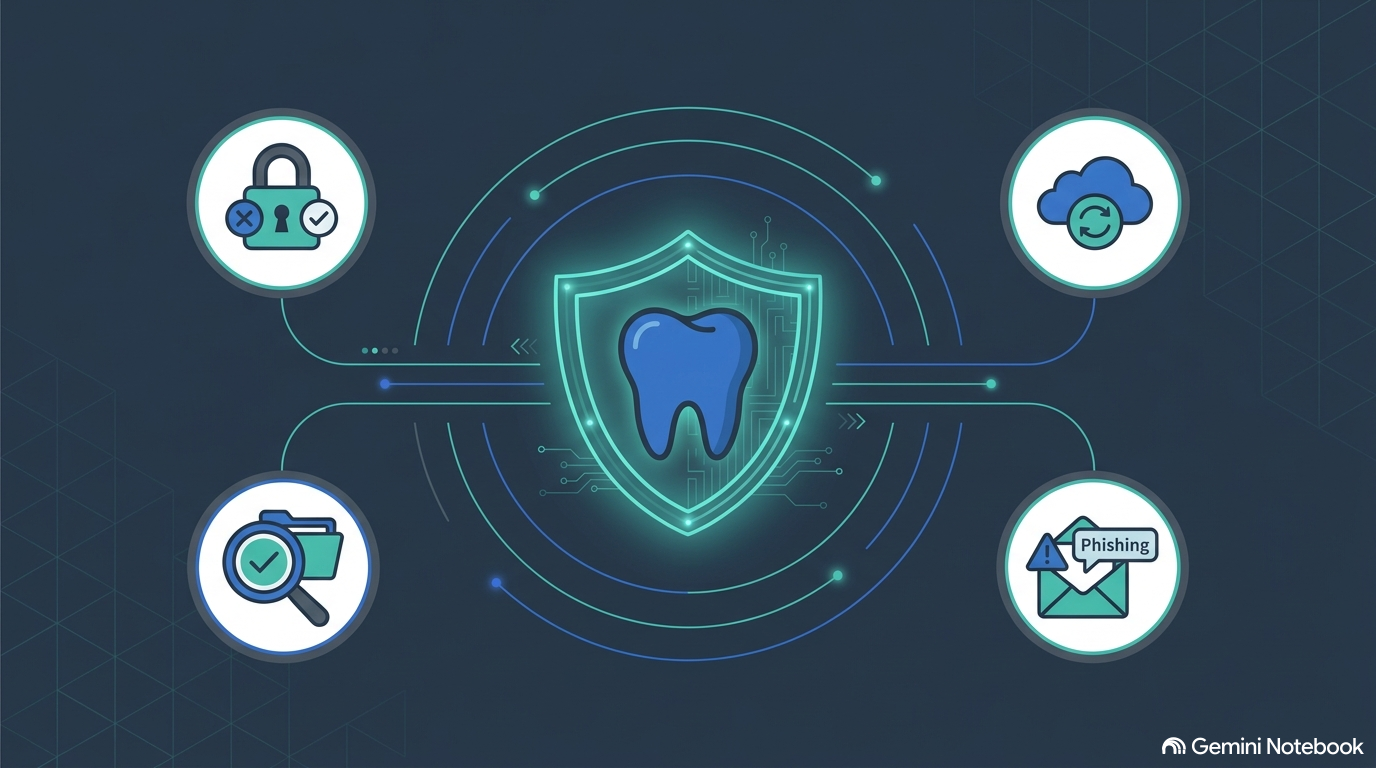
This year’s Dental Bootcamp included a lot of amazing speakers but the one I am still thinking about is Mark Williamson from Wavemark Consulting. Here is a quick summary of his talk:
Clinical excellence, patient experience, and practice production are the pillars of dental practice success and these days there is a silent foundation supporting all three: your clinical technology. Your practice management software, digital imaging, electronic billing, and e-prescribing tools are not just administrative helpers—they are critical clinical infrastructure. When they are secure, your clinic runs smoothly. When they are disrupted by a cyber attack, patient care stops, schedules collapse, and your cash flow freezes instantly.
Here is a streamlined breakdown of the modern dental threat landscape and a practical, 90-day roadmap to safeguard your business that Mark shared.
Why Dental Offices Are Prime Targets
Many dentists believe their practices are too small to attract professional cybercriminals. In reality, hackers do not target you because of your brand; they target you because you represent the easiest path to money. Dental practices are uniquely vulnerable because they hold:
High-Value Patient Data: Your database contains electronic Protected Health Information (ePHI)—including health records, insurance numbers, payment details, Social Security numbers, and employee files. This is highly valuable on the dark web.
Severe Operational Pressure: If your scheduling or imaging databases lock up, your clinic cannot treat patients. Cybercriminals know you cannot afford days of downtime, making you highly susceptible to extortion.
Predictable Security Gaps: Shared passwords, unencrypted laptops, active accounts for former employees, and unpatched firewalls are common across the industry.
The Core Threats Facing Your Practice
Cybercriminals generally use simple, automated entryways to penetrate your network:
Phishing & Credential Theft: Highly convincing emails (masquerading as Microsoft, Google, or portal invoices) trick staff into entering their passwords on fake login pages.
Ransomware & Extortion: Attackers infect your network, lock your clinical software and databases, and steal sensitive patient files, threatening to publish them unless a steep ransom is paid.
MFA Fatigue Attacks: If an attacker steals a password, they will repeatedly trigger Multi-Factor Authentication (MFA) prompts to a staff member's phone, hoping they will click "approve" out of sheer annoyance or distraction.
Supply Chain Outages: As demonstrated by the historic Change Healthcare disruption, an outage at a third-party billing or clearinghouse vendor can immediately freeze your claims processing and clinical workflows.
What "Good" Cybersecurity Looks Like
Before buying expensive security tools, audit your clinic against these essential, common-sense security baselines. The weakest link is usually the human:
Isolated Guest Wi-Fi: Patients use a separate Wi-Fi network completely blocked from accessing your business servers and workstations.
No Shared Logins: Every staff member has an individual username and password. Local administrative rights are restricted on standard workstations.
MFA on Everything: Multi-factor authentication is enforced for business email, remote access VPNs, practice management portals, and billing platforms.
Modern Endpoint Security: All workstations and clinical servers are encrypted and run modern Endpoint Detection and Response (EDR) rather than legacy, consumer-grade antivirus.
Active Cloud Backups: M365 and Google Workspace accounts are backed up independently (syncing files to the cloud is not a backup).
The 90-Day Practice Hardening Roadmap
You don't need to fix everything overnight. Wavemark recommends a phased, structured approach to build a defensible and resilient practice.
Month 1: The "Quick Wins" - Visibility & Critical Fixes
Enforce MFA: Turn on Multi-Factor Authentication on all staff emails, remote access portals, and billing systems.
Clean Up Stale Accounts: Audit your active users. Disable accounts for former employees, old support vendors, and past contractors.
Inventory Your ePHI: Document exactly where patient records live and who has authorized access.
Verify Your Backups: Confirm backups are running daily, and perform a test restore of at least one clinical folder to prove it actually works.
Month 2: Policy & Prevention
Upgrade to EDR: Swap out passive, traditional antivirus for an active EDR tool that monitors behavioral anomalies and isolates compromised machines.
Roll Out a Password Manager: Ensure staff can securely generate, store, and share complex, unique passwords.
Conduct Front-Desk Training: Teach your team how to identify phishing emails, handle phone-based social engineering, and report security mistakes without fear of punishment.
Month 3: Hardening & Response
Establish Vendor Remote-Access Controls: Require named accounts and mandatory MFA for all IT and dental software vendors who remotely connect to your server.
Perform a Full Restore Test: Test a complete recovery of your practice management database from your backup environment.
Print an Incident Response Plan: Create a physical, paper emergency sheet containing critical phone numbers (IT partner, cyber insurer, legal counsel, and software vendors) so you know exactly what to do if your network is offline.
The Cybersecurity "Seatbelt": Insurance Compliance
Many dentists treat cyber insurance as an automatic financial safety net. It is not. Insurers are actively auditing claims, and misstating your security controls on an application can result in a denied claim.
Audit Before You Renew: If your application states you have MFA enabled for all remote access and email, but a breach occurs on an un-MFA'd portal, your carrier may refuse payout.
Keep Proof of Compliance: Maintain documentation of your active security policies, employee training logs, and monthly backup restore tests.
Emergency Playbook: 5 Steps to Take During an Active Attack
The worst time to draft an emergency response is when a ransom note appears on your workstation.
Print this checklist and keep it at your front desk.
Practice Quiz: Is Your Team Cyber-Ready?
Take this quiz yourself, then run through these 5 real-world scenarios with your team during your next morning huddle!
Scenario 1: The Urgent Microsoft Alert
Your front-desk coordinator receives an email from "Microsoft Security Team" stating that your practice's email server is running out of space and all logins will be blocked in 2 hours unless they click a link to verify their credentials.
A) Click the link and log in immediately to prevent a practice-wide email shutdown.
B) Delete the email immediately without telling anyone.
C) Do not click the link. Verify the sender's actual email address, notify your office manager or IT partner, and log into your Microsoft portal directly through a secure browser bookmark instead.
Correct Answer: C. Cybercriminals prey on urgency. This is a classic credential harvesting phishing attack. Clicking the link and entering credentials gives hackers full control of your business email.
Scenario 2: The MFA Fatigue Attack
You are at home in the evening, and your phone starts buzzing repeatedly with Multi-Factor Authentication (MFA) prompts asking you to approve a login to your clinical billing portal. You are not trying to log in.
A) Approve the request to make the buzzing stop so you can go back to sleep.
B) Decline the prompt, immediately change your account password, and report the incident to your security administrator.
C) Ignore the notifications and wait to see if they stop on their own.
Correct Answer: B. If you receive an unsolicited MFA prompt, it means an attacker already has your password and is trying to bypass your secondary lock. Approving the prompt lets them in. Declining and changing your password blocks the breach.
Scenario 3: The "Friendly" IT Phone Call
Someone calls the front desk claiming to be "Dave from the Eaglesoft software support team." He says there is a glitch in your digital imaging database and asks the receptionist to go to a website to download a remote utility tool so he can "patch the server."
A) Follow Dave's instructions and download the software since you need your imaging software to work flawlessly.
B) Hang up immediately and block the caller.
C) Tell the caller you will call them back. Hang up, look up the verified support number of your dental software vendor, and call them directly to confirm if "Dave" is a legitimate technician on an active ticket.
Correct Answer: C. This is "social engineering". Attackers frequently impersonate known vendors to trick staff into granting them direct remote control over clinical servers. Always verify the caller independently before allowing remote access.
Scenario 4: The Departing Team Member
An associate dentist leaves your practice to open their own clinic. You had a great relationship, so you leave their cloud imaging and email credentials active for a few weeks "just in case" they need to wrap up clinical notes.
A) This is perfectly fine; you trust them completely and it saves administrative hassle.
B) This is a severe compliance and security risk. All accounts should be disabled or deleted on their final day of work.
C) Change their password but leave the account active so you can log in as them to view old patient notes.
Correct Answer: B. Leaving stale accounts active violates HIPAA administrative and technical safeguards. Even if you trust the person, unmanaged accounts are primary targets for automated credential stuffing and dictionary attacks.
Scenario 5: The Insurance Verification
Your annual cyber insurance renewal application asks: "Do you utilize Multi-Factor Authentication (MFA) for all administrative and remote email access?" Your IT provider has set up MFA on 90% of your staff accounts, but you disabled it on your personal tablet login because you find it annoying.
A) Mark "Yes" on the form. 90% is basically a "Yes" and you need the insurance policy active.
B) Mark "No" and accept a higher premium, or work with your IT provider to ensure MFA is enabled on 100% of accounts before signing.
C) Leave the question blank.
Correct Answer: B. Marking "Yes" when a single account lacks MFA constitutes a misstatement of controls. If a breach occurs on that non-MFA login, your insurance company can—and likely will—legally deny your claim, leaving you to pay recovery costs out of pocket.